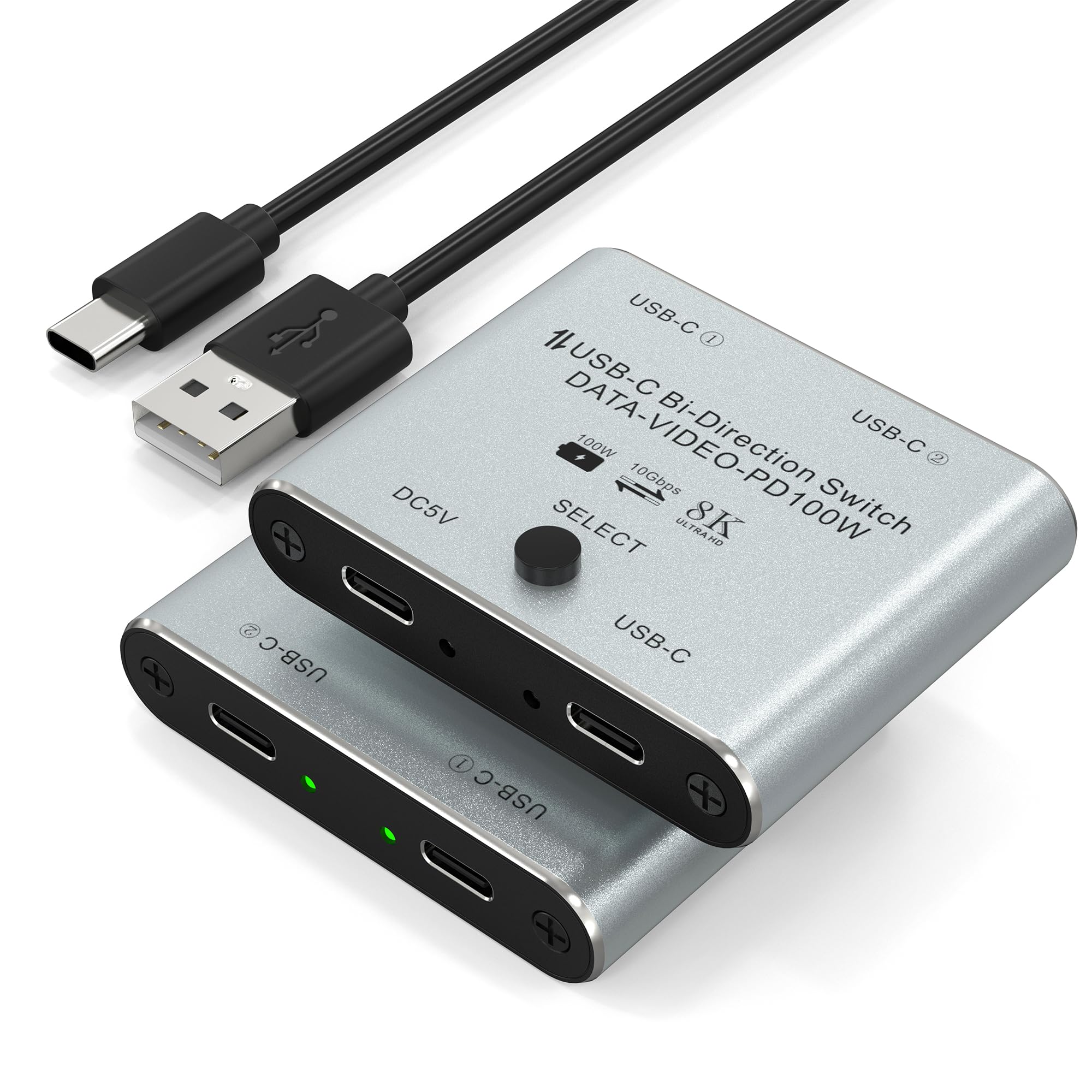



USB C Switch/USB C Spliiter with 8K Video Display, 100W PD Charging and 10Gbps Transfer
This 8K USB C KVM Switch supports USB 3.1 Gen 2, 10Gbps/S high-speed transmission, integrating data/video/PD fast charging technology. Can easily realize two USB-C computers share a display device, through the button can choose which computer to connect the display device, but also can easily realize a computer share the use of multiple external devices, such as printers, USB flash drives, video cameras, etc., eliminating the need for frequent unplugging and plugging of the device's cables.Two Modes:
- → Mode1-Splitter → 1 video source shares 2 monitors (2 monitors can not work at the same time!)
- → Mode2-Switcher → 2 video sources share 1 monitorWarm Tips!
- Connecting a USB-C/Thunderbolt docking station/hub is recommended.
- Need to use standard USB-C USB 3.1 Gen-2 cables to connect and use the USB cable to power the switch. The length of switcher cable is 60CM/1.97FT and the USB-C cables included (Support Data&Video&PD) are 80CM/2.62FT.
- 24-hour email support, and a 2-year after-sales service, please feel free to let us know if you encounter problems using this USB C switcher.
Use of common problems and troubleshooting methods:
1. The product has been connected to the device, and the key cannot switch the fault
1).Check DC 5V connector. If there is no power supply, please connect the power supply line of the product to the 5V charging head or the USB head of the equipment. After the power supply is connected, the channel selection indicator will turn on, and the button can be switched.
2).If DC 5V has power supply, please check whether other connecting lines are correctly connected, or exclude whether the connecting lines are well inserted.
3). Check whether the button can be pressed, whether the key touch control is good and effective, and whether the 1 and 2 channel lights are on. If the channel lights are not on, it is recommended to contact the service merchant to replace them.
2. The display cannot display the fault after the product connection
1). Check whether the computer USB-C and the monitor communicate normally, and whether the monitor or display device switch the channels correctly.
2). Check that the output resolution of the computer is too high, so that the display can not support the high resolution input without display. It is recommended to set the output of the computer output resolution to the highest resolution that the display can display.
3). Check whether the computer device supports the USB-C video output function.
3. After the equipment is connected, the transmission speed is slow and can not reach the high-speed transmission
1). Under the normal condition of equipment connection and communication, the speed of transmission speed is related to your computer configuration and the equipment, as well as the quality of your cable. It is recommended to use our attached cables together to achieve the best performance.
2). You use the cable matching your products, but the speed is still slow, it is recommended to check whether your computer configuration and external equipment can run high speed transmission, if you can run high speed transmission, if you can run high speed transmission, it is recommended to update your computer motherboard system drive, and then restart the computer to try.
4. After the device is connected, the charging is very slow and can not reach t