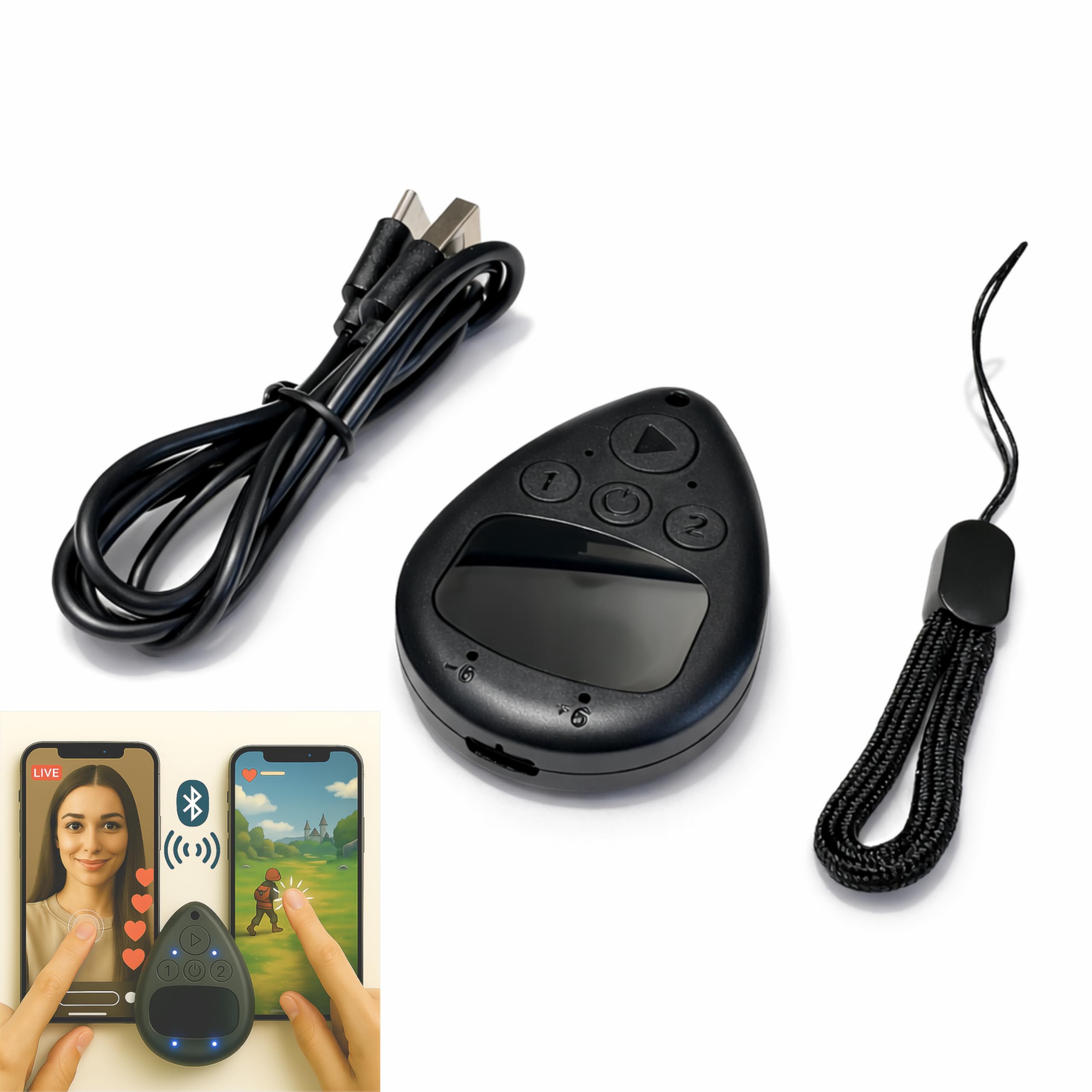
Peach Fairyers Bluetooth Screen Tapper Auto Clicker for TikTok App - Wireless Touchpad Remote Phone Tapper for iPhone & Android (iOS AssistiveTouch
$14.99
by Peach Fairyers



IMPORTANT for iPhone/iPad: Enable AssistiveTouch to use the on-screen cursor (Settings > Accessibility > Touch > AssistiveTouch). If connected but taps do not work, toggle AssistiveTouch OFF/ON and re-pair S1/S2 Hands-free tapper for TikTok App(taps/clicks, not swipes): Slide the touchpad to move the cursor dot, place it on the spot you want, then start auto tapping. No clips, no wires, no extra app Dual device S1/S2: Pair Phone A as S1 and Phone B as S2, then press S1/S2 to switch control instantly. LEDs show connection status, so you know you are ready to tap Two speed modes: Turbo up to 6 taps/sec or Slow mode (one tap every six seconds) to keep apps active longer. One-button start/stop for steady, repeatable tapping USB-C rechargeable and quiet: Compact, cordless, and travel-ready (up to 24 hours per charge). Includes a quick-start guide and troubleshooting tips to reduce setup confusion and returns This Bluetooth tapper for TikTok is a wireless screen tapper and auto clicker for single-point on-screen tapping (taps/clicks). It works by moving an on-screen cursor dot to the exact spot you want, then tapping at your chosen speed. It is designed for tapping, not swipe/scroll gestures. How it works 1) Pair via Bluetooth as S1 (optional: pair a second phone as S2) 2) Slide on the touchpad to move the cursor dot onto the on-screen button you want 3) Choose Turbo (up to 6 taps/sec) or Slow mode (one tap every six seconds), then start/stop with one button Important setup for iPhone/iPad iOS requires AssistiveTouch to display and control the cursor dot: Settings > Accessibility > Touch > AssistiveTouch (ON) If Bluetooth shows connected but taps do not respond, toggle AssistiveTouch OFF/ON, forget the device in Bluetooth, and re-pair Use cases - TikTok tapping on on-screen buttons - Repetitive in-app taps and click-heavy mobile games - Tap-to-turn page turning in supported reading apps Quick troubleshooting - Connected but not working on iOS: AssistiveTouch is OFF - Cursor moves but taps miss: reposition the cursor dot precisely - Switching phones: press S1 or S2 to toggle control (LED ON = connected) Use responsibly and follow app and device rules