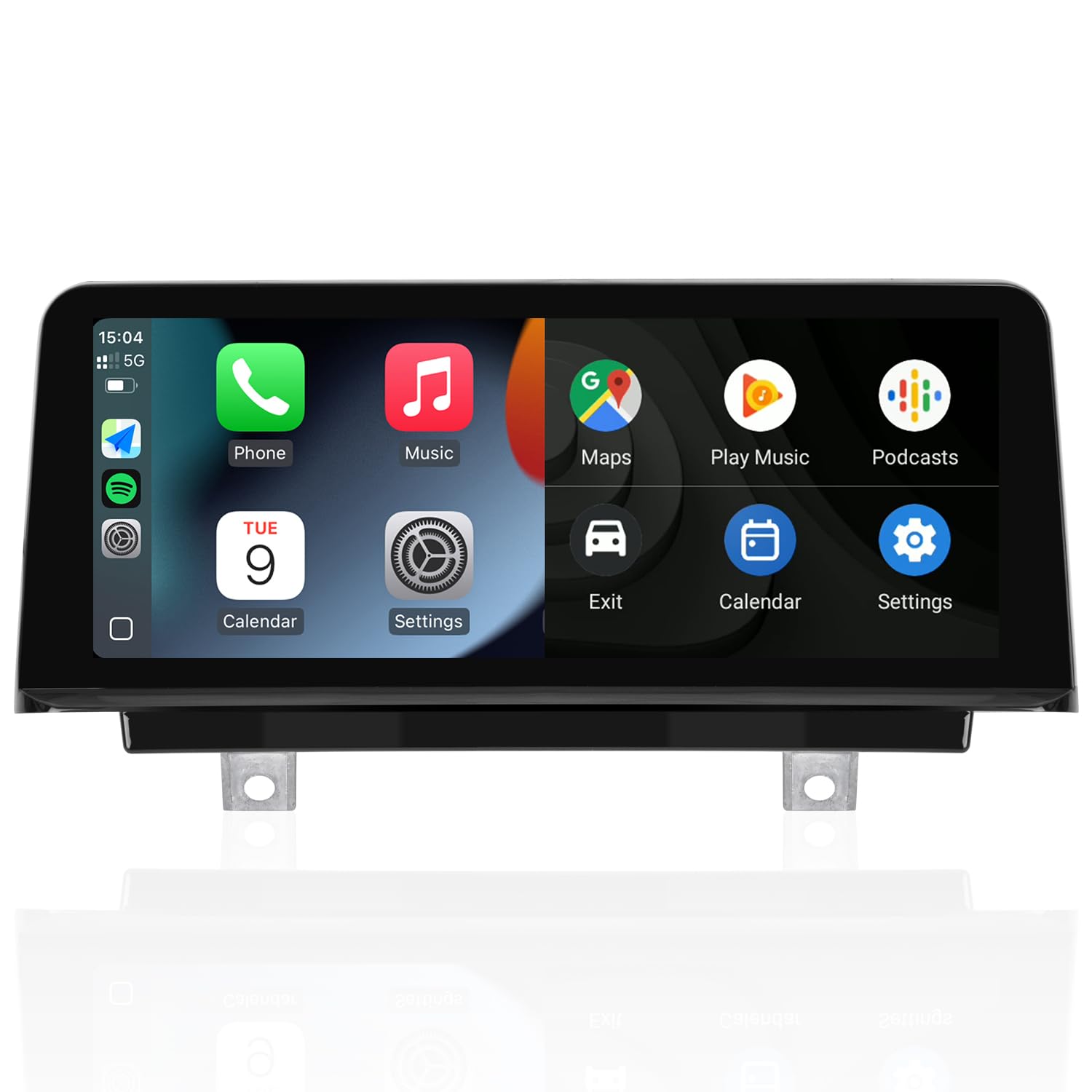



YEAR MODEL
2012-2017 3 Series F30 F31 F34 F35, 4 Series F32 F33, 1 Series F20 F21, 2 Series F22 NBT CIC.
PRODUCT PROCESS CHARACTERISTICS
1. Piano lacquer: Piano lacquer process the frame is made of piano lacquer, which is wear-resistant and provides better visibility.
2. Non-air-gap: Black background craft with full lamination process, the distance between the display and the touchpad is 0, and the display is more realistic.
3. Narrow frame: The frame is only 1MM, which increases the viewing area of the display.
FEATURED FUNCTIONS
HD IPS Screen resolution: 1920x720
Support wired and wireless Carplay Android Auto Mirror Link.
Support the OEM and After-market Camera: You can select the camera option in the settings theafter-market camera only support CVBS or 720P AHD format.
FIBER OPTIC SWITCHING
When your car's original CD player cable has a fiber optic cable, how to properly adapter fiber optic cables?
Operational Steps: Please note, improperly adapted fiber optic cables can result in no sound from the unit.
Step 1: Unplug the 2P fiber optic cable from the original CD player and remember the hole where the cable is located.
Step 2: Insert the 2P fiber optic cable you just unplugged into the appropriate hole on the YEEHUNG ISO hamess.
Step 3: After the fiber optic cable is inserted, plug the ISO hamess into the stock CD player.
Step 4: Finally, you can just connect the ISO hamess on the other end to the stock CD cable.
AUTOMATIC SWITCH TO AUX
You can set auto AUX mode, when switch to Carplay or Android auto, the sound will be switched automatically. Please select the correct factory host brand (Harman or Alpine).
1. Select "Car Settings" in "setup" and find "Automatically switch to AUX".
2. You can choose "Harman Head Unit" or " Apine Head Unit" according to your car.
MANUAL AUX SETTING METHOD
You can also store the AUX mode in the 8 button, and every time you press the 8 button before entering a new system, you can get the sound of Carplay or Android auto.
1. Go to "Main menu" and select "Multimedia".
2. Then select "External devices".
3. We long press the number key "8", when we hear the tone ringing, we are set.
4. Press 8 every time before entering the new system, You'll get the Carplay sound.
USB CONNECTION AND OEM RESOLUTION AND CAMERA SETTINGS
1. Need use the USB IN1 Connect the Wired Function: Be sure to use USB IN 1 to connect the wired Carplay Android auto and Mirror link function.
2. Set the OEM Resolution: Please select the correct resolution for the OEM display with in the settings, other wise the OEM Car INFO may not display properly.
Setup>Car Settings> Original Car's Screen Resolution> Select the item
3. Support the OEM or after-market Camera:
Please select the correct camera option with in Settings Select Original Camera if it is a factory camera. Select Aftermarket Camera, if you are installing an aftermarket camera.
SOLVING SOUND PROBLEMS
1. lf